Sylton Connect Tutorial - using your PC to edit the App
The benefits of using Sylton Connect:• Easily manage and adjust company information, adjust catalogues and see and share photos from any device.• Have all clients’ data available at any place and time.• Save client photos as JPEGS and store them in your clients’ files.• Client reports available from any device and browser.First go to Sylton connect.com and log in using the same login details you used for the OBSERV app. The exact email and password.
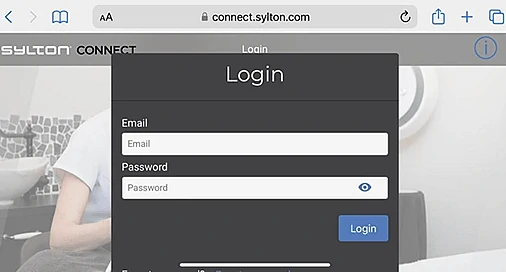
1. Once logged in, go to the sidebar menu on the top left-hand corner.
2. Click on account > account details, here you will be able to edit your account details.
3. Go to company > company details, here you will be able to edit your clinic name and company details and add your company logo. This information will be added to your email template via the OBSERV app when you send your clients’ their report.
4. Click on email template located under company details on the side menu and here you will be able to customise all your email details.
5. Click on manage users under email template on the side bar, here you will be able to add and remove users who have access to the OBSERV App account. The admin of the account is usually the clinic owner, and the users are the staff members, only the admin person of the account can change details, catalogues and prices. Please see the 3 dots at the end of the user’s box to edit the users details as required.
6. Under manage users you can click on Sylton connect on the side bar, this will give you all the data on your OBSERV App regarding how many clients you have, how many sessions, how much cloud you have used and how much cloud you have available. You will also see Sylton cloud products located underneath this shows when your free storage trial period ends.
7. Once you go back to the side bar and click on legal, this is the consent information, it is best to do this before you start having clients under the OBSERV, if you do apply changes in the future, all clients will need to renew their consent.
8. API Keys will be added as a feature in the future for large franchise style clinics.
9. Once you return to the side bar, click on catalogue manager, here you will be able to edit all your clinic treatments and retail products, prices and add product pictures for you to utilise in the OBSERV app. Please see a video tutorial on the Sylton connect website (here)