P. OBSERV Neck & Décolleté Extension kit
P.1. Neck & Décolleté Extension kit
Pack content:Ensure your Neck and Decollete extension kit is complete before proceeding to the next step.
Your kit includes:- Extended lightshade.- Decollete rest.- Storage bag.- Comfort drape.- Activation voucher.
Your kit includes:- Extended lightshade.- Decollete rest.- Storage bag.- Comfort drape.- Activation voucher.
P.2. To activate the Neck & Decollete extension kit voucher
1. Go to Settings.2. Click on Device Options.3. Click on the button 'Redeem voucher code'4. Enter the code on the back of the activation voucher.5. Press Redeem.6. The app will now ask you to pair the activation to the OBSERV.7. Press the Power Button on the OBSERV to transfer the product to the device.8. The product is now activated onto the OBSERV and in the app.
Repeat these steps to activate your second voucher if applicable.
Repeat these steps to activate your second voucher if applicable.
P.3. Preparing the patient
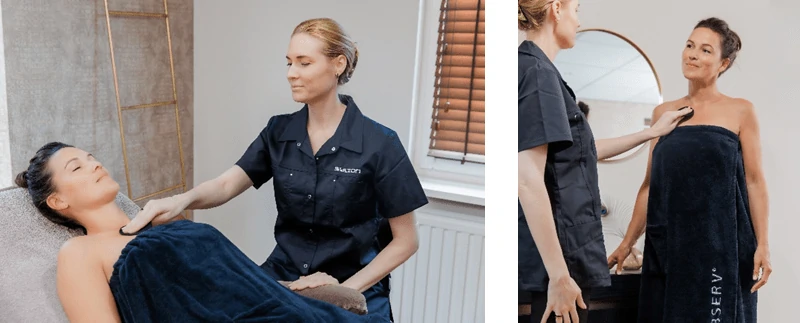
Qualitative use and creating qualitative photos with the Neck & Decollete accessory start with preparing the client and with giving clear instructions on how to position for qualitative photos of the neck and decollete.
1. Before your client arrives, make sure that the OBSERV accessories are clean and disinfected. Remove the extended lightshade and spray it with an alcohol-based cleaner and let airdry. Clean the decollete rest with an alcohol pad.
2. Ensure the clients skin is free of residue from skincare and cleansers, this will influence the quality of your photos and mask or reduce the visibility of skin concerns.
3. Ask your client to remove all upper body clothing, jewellery and dermal piercings.
4.Use the provided comfort wrap to keep the client comfortable and conceal bra straps.
5. Attach the decollete rest to the OBSERV explaining to your client how to position themselves when photos are captured. Place the décolleté rest on the sternum, between the plexus and the heart. Instruct the patient to keep their arms hanging naturally by their sides. While you are doing this also adjust the mobile stand according to your client’s height. The OBSERV Mobile stand is mandatory to use with the Neck and Decollete Extension kit.
6. Ask your client to pop back out of the OBSERV while you attach the new lightshade to the OBSERV just like the regular lightshade, the extended lightshade allows for the client to stand inside and blocks out all light, then assist your client to pop inside the lightshade, placing them in the desired position for capture mode.
7. Before you start capturing, select the appropriate capture mode from the "hamburger" menu located next to the camera button on the capture screen. Choose "Neck" to activate neck and profile captures, or "Torso" to activate décolleté and back captures. For frontal neck pictures and to capture the left and right profiles. Instruct the patient to hold their breath for 10 seconds during the capturing process.
8.Proceed to capture your clients’ photos and reposition your client when needed, remove the Décolleté rest to capture the 90° profiles and have the patient stand sideways with their arm against the OBSERV. Instruct the patient to hold the mobile stand for stability. Check the photo's quality and accept or capture again.
P.4. Decollete rest

To take images of the neck and decollete you have a new decollete rest. Attach the decollete rest by simply sliding the rest over the mount inside the OBSERV. Slide the rest until it stops and secure it by tightening the screw. The decollete rest is designed to keep the upper body of the client at the same distance from the camera to ensure a correct focal point for obtaining sharp images. Place the decollete rest in the OBSERV when capturing the Neck, Decollete and back in the 0°-degree angle. Remove the rest when capturing the 90° profiles.
P.5. Client positioning


For safety and to minimize accidents, the operator moves the OBSERV towards and away from the client. Instruct the client to remain still throughout the capture process. Place the décolleté rest on the sternum, between the plexus and the heart. Instruct the client to keep their arms hanging naturally by their sides. Remove the Décolleté rest to capture the profiles and have the client stand sideways with their arm against the OBSERV. Instruct the client to hold the mobile stand for stability.
P.6. Positioning guidance lines
1. 0° angle Neck & DecolleteUse the guidance lines on your iPad's capture screen to correctly position the patient. 0° angle Neck & Decollete. Align the middle guideline from the middle of the chin to the sternum. The shoulder lines rest on the shoulders. The lower part of the vertical neck lines touches the shoulders.
2. 90° angle right ProfilePosition the middle vertical line from the earlobe to the clavicle. Place the upper horizontal line under the chin. Instruct the client to maintain a normal posture, looking forward. The bottom horizontal line aligns correctly when the first two lines are set properly.
3. 90° angle left ProfilePosition the middle vertical line from the earlobe to the clavicle. Place the upper horizontal line under the chin. Instruct the client to maintain a normal posture, looking forward. The bottom horizontal line aligns correctly when the first two lines are set properly.
4. Back ProfilePosition the middle vertical line on the vertebra of the client. The horizontal shoulder lines rest on the shoulders. The lower part of the vertical neck lines touching the shoulders.If the client is too tall for the mobile stand or physically unable to stand for capturing the neck and décolleté, they can be positioned sitting. Use a height-adjustable saddle chair without back support to ensure the patient maintains an ergonomic posture.
P.7. Capture and analyse
With the Neck and Decollete extension kit you are able to capture and analyse 4 different zones
1. Neck and Profiles2. Décolleté3. Back4. Custom
Before you start capturing, select the appropriate capture mode from the "hamburger" menu on the capture screen. Choose "Neck" to activate neck and profile captures, or "Torso" to activate décolleté and back captures.
1. Neck and Profiles2. Décolleté3. Back4. Custom
Before you start capturing, select the appropriate capture mode from the "hamburger" menu on the capture screen. Choose "Neck" to activate neck and profile captures, or "Torso" to activate décolleté and back captures.
P.8. Capturing Neck & profiles
To start capturing the neck and profiles, follow these steps:
1. Go to the capture mode menu and select "Neck."2. For frontal neck pictures, ensure the middle icon is selected.3. To capture the left and right profiles, click on the corresponding buttons.4. Instruct the patient to hold their breath for 10 seconds during the capturing process.5. Check the photo's quality and accept or capture again.To start capturing the décolleté and back, go to the capture mode menu and click on 'Torso.' Use the positioning lines on the iPad app screen to ensure the shoulders are aligned with the horizontal lines and the neck is positioned between the vertical lines. Then, capture the image.
1. Go to the capture mode menu and select "Neck."2. For frontal neck pictures, ensure the middle icon is selected.3. To capture the left and right profiles, click on the corresponding buttons.4. Instruct the patient to hold their breath for 10 seconds during the capturing process.5. Check the photo's quality and accept or capture again.To start capturing the décolleté and back, go to the capture mode menu and click on 'Torso.' Use the positioning lines on the iPad app screen to ensure the shoulders are aligned with the horizontal lines and the neck is positioned between the vertical lines. Then, capture the image.
P.9. Custom Capturing
The custom capturing option provides you with a free choice of adding additional images to a patient session in the OBSERV app. You can use both the OBSERV to capture a daylight image or take of the iPad and take a picture using the iPad camera. You can add a maximum of three images to a single session.
P.10. Hamburger menu
In the "hamburger menu," you can switch between different capture modes. Only the modes that have been captured will be displayed. You will find the hamburger menu located next to the camera button on the capture screen.