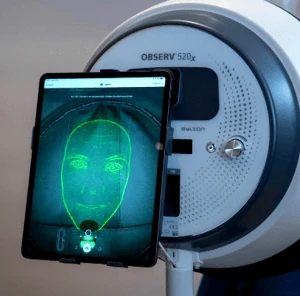
N. OBSERV 520X 360 Light Extension kit
The 360 light is designed to offer a valuable insight on the loss of volume
Watch the OBSERV 360 Light demos here:
N.1. Set up
1. Attaching the chinrest in the OBSERV
For optimal imaging results always use the provided chinrest to position your clients face correctly in the OBSERV.
- To attach the chinrest simply slide the chinrest over the mount inside the OBSERV.
- Slide the chinrest until it stops and secure it by tightening the screw.
2. Cleaning instructionsWhen using the chinrest, disinfect the pedestal with a soft moist medical disinfectant wipe (with a maximum of 70% isopropyl alcohol). Do not use on other surfaces! Never clean the device with abrasive cleaners or organic solvents like benzene, acetone or thinner.
- To attach the chinrest simply slide the chinrest over the mount inside the OBSERV.
- Slide the chinrest until it stops and secure it by tightening the screw.
2. Cleaning instructionsWhen using the chinrest, disinfect the pedestal with a soft moist medical disinfectant wipe (with a maximum of 70% isopropyl alcohol). Do not use on other surfaces! Never clean the device with abrasive cleaners or organic solvents like benzene, acetone or thinner.
3. Activation of the voucher
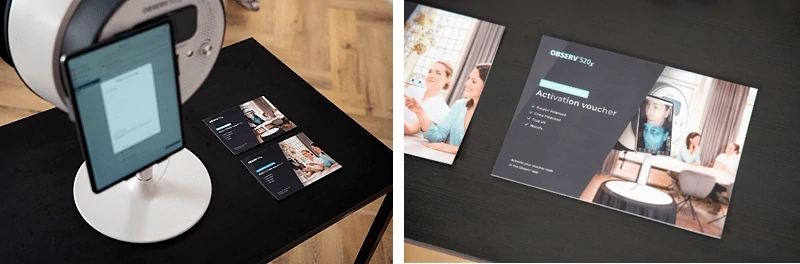
1. Open the OBSERV app.2. Go to Settings.3. Tap Sylton Connect.4. Tap + Redeem voucher code on the bottom of the menu.5. Fill in the voucher code.6. A pop-up message “Transfer products to device” will appear on your iPad screen.7. Press the Power button of the Observ on which you want to activate the product.8. You are now able to use the product with this device.The activated products on a device are visible in the Device Options page under Paired Devices - Products.
4. The chinrest in use
Provide the possibility for the client to sit comfortable in front of the OBSERV. Move the chinrest in the desired position. Ask the client to position their head into the lightshade. Ask the client to place their hand in front of the cup and to put their chin on the chinrest against their hand. Let the client remove their hand. Close the lightshade. Let the client position themselves with the help of the Face Positioning System. Now the setup is ready to start the consult. The app will guide you through the consultation. When using the app ask the client to look at the FacePositioning System during the capture of pictures. Prior to capturing images, instruct your client not to move during the capturing process.
Beware, your client may not hear you when positioned in the OBSERV.


N.2.Using the chinrest
1. Remove the lightshade and explain how to position on the chinrest.2. Place the lightshade on the OBSERV.3. Ask the client to place their hand in front of the cup on the chinrest.4. Ask the client to place their chin against their hand and on the cup.5. Ask the client to remove their hand.6. Then ask the client to position themselves with the Face Positioning System (FPS).7. When this is not the first session use the ghosting function for better repositioning.

Using the chinrest for side view pictures
In addition to the frontal view, the chinrest can be adjusted to different positions to support 40 and 90-degree views of the face. To capture the 40° view left side of the face, slide the arm of the chinrest one step to the right and rotate the chin-cup one step clockwise.
To capture the 90° view left side of the face (profile pictures), rotate the chin cup one step further clockwise from the previous position.

Ghosting
When this is not the first session, use the ghosting function for better repositioning. Turn on the ghosting function by tapping the button left to the capture button.
0° 40° 90°