C. How to pair your iPad with your OBSERV
C. 1. To pair your OBSERV device to the OBSERV App follow the steps below:
1. Turn on your OBSERV by plugging the OBSERV into a power point.2. Open the OBSERV App. Go to top right hand of Home Page to the three dots and open.3. Go to Settings.4. Tap Device Options.5. Tap Pair with New Device.6. A pop-up message “Pair new device!” will appear on your iPad screen.7. Press the Power button of your OBSERV once, it will pair automatically and turn blue.8. The pop-up message will disappear if the device is paired properly.9. Your device’s Serial Number will appear in the list of Paired Devices.10. You are now able to capture images.
C.2. iPad visor
For clear imaging it is very important that your iPad’s camera is correctly placed in the iPad visor.
1. Before using check that your iPad camera is compatible with one of the two camera stickers provided.2. Selecting the correct sticker for your iPad camera, peel and stick it to the top right-hand corner of the universal iPad visor, pay attention to match the notch in the sticker with the rib on the universal iPad visor.
1. Before using check that your iPad camera is compatible with one of the two camera stickers provided.2. Selecting the correct sticker for your iPad camera, peel and stick it to the top right-hand corner of the universal iPad visor, pay attention to match the notch in the sticker with the rib on the universal iPad visor.
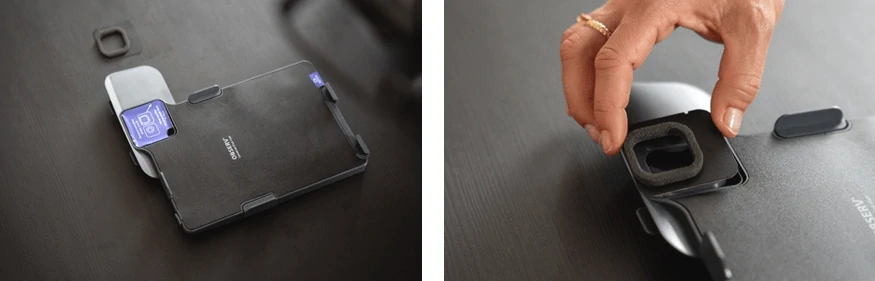
3. You will find an Allen key positioned at the bottom of the universal iPad visor, it is magnetic, and you can remove this. 4. Use the Allen key to untighten the 3 screws on the back of the visor and slide out the arms.

5. Hold the visor in an upstanding position on a flat surface, place the iPad in the visor, checking that the back of the iPad camera is centred with the clear opening of the camera sticker.6. Maintain the position while tightening the bottom screw with the Allen key.7. Slide the side arms in place to fit your iPad tightly and then screw them in place with the Allen key, while maintaining the centred position of your iPad camera through the clear opening of the camera sticker. 8. Place the Allen key back into the bottom compartment of the iPad visor, for future use of adjusting the visor extending arms.9. Attach the iPad visor to the front of your observ using the method –Line up the two extensions and slide them in, push the visor flat against the OBSERV face plate and using the top extending visor flap push the unit down so it clicks into a secure locked-in position.
