K. How to create a report
K.1. Saving your clients’ skin analysis to report
During your clients’ skin analysis, while you are discussing the clients’ concerns, you can make notes while examining the clients’ photos/clinical visuals with them and save it to their report. This makes up time efficiency to remember what you discussed with your client, rather than trying to remember notes and details after the analysis.
1. While examining your client’s photos on the analysis screen, there is a highlight button located at the bottom bar of the analysis screen.
Press the highlight button and a hight menu will appear on the right side of the screen, this is where you can add notes or save the picture, this is handy to do when you have noted down/drawn or highlighted concerns and treatments of important data during your consultation with your client that you want to reference back to, this will automatically be saved to your clients report when you click ‘save to report’ button. You will be able to do this with any light mode option you are on while on the analysis page.
K.2. Your clients skin analysis report
1. Once you have finished your skin analysis with you client, click ‘Report’ at the top left-hand corner of the analysis screen. This will take you to your clients report page.2. Scroll down and you will see all your clients’ photos taken from the OBSERV, you will see a light green tick box on each photo, it is recommended to only select the photos of the main concerns you discussed with your client during the analysis, to avoid your client becoming overwhelmed or confused will all the pictures when emailed to them.3. Go through all client’s photos on the report and deselect the photos not needed to be emailed to your client. Please make sure you deselect all irrelevant photos on every angle going through the current session picture menu you will see: 1. C0 tick box (centre 0 degrees) 2. R40 tick box (right 40 degrees)3. L40 tick box (left 40 degrees)4. L90 tick box (left 90 degrees)5. R90 tick box (right 90 degrees)
Go through every C0, R40, L40, L90, R90 degree tick box and unselect the photos you client doesn’t need to see.
- Scroll down to ‘Selection of treatments’ make sure the green box is ticked and select add treatment.- Once the treatment menu is loaded you then add your recommended treatments to your client, the treatment menu should be already customized to your clinic’s menu.- You will see a box next to the treatment name, press the + button to add the quantity of treatments needed, and follow the same steps for any other treatment in your menu. - Click the report button on the top left-hand corner of the screen, once you have selected the desired treatments, and this will take you back to the report page, loaded with the treatments you have recommended for your client.- Go to ‘Selection of home care’ located under the treatments option, and tick the green box, and press the ‘+ Add product’ button.- This will load the product page for you to add your recommended products to your client. The product menu should already be customised to your clinics retail product range. - Scroll the product menu and select all recommended products for your client, you will see a box next to the product name, press the + button to add the quantity of products needed, and follow the same steps when selecting any other products in the menu.- Click the report button on the top left-hand corner of the screen to take you back to the report page and this will have saved all your selected products to the clients’ report. - Your clients report will be finished once these steps have been completed, you will see the ‘Total cost’ box at the bottom of the report page, make sure this is ticked, ready to email to your client.
- Once the report is completed make sure you press ‘Done’ on the top right-hand corner of your screen.
It is important to click ‘Done’ once you have finished your clients report so it saves to your clients file otherwise you will lose the clients report.
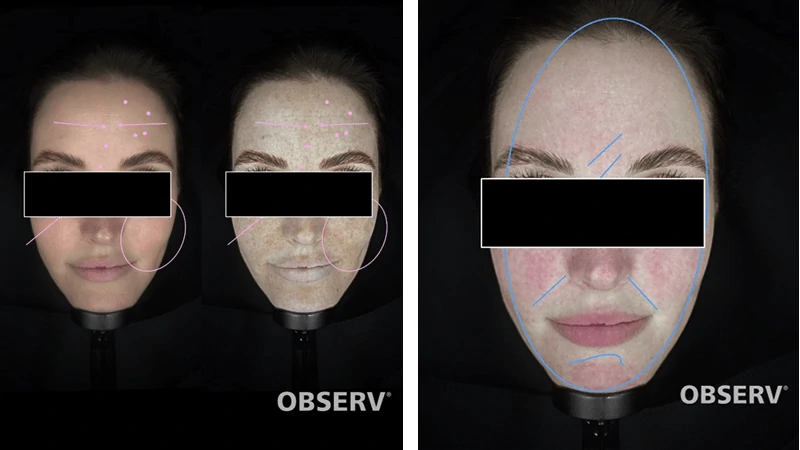
- Now you can email your report to your client by clicking the share button located next to the ‘Done.’ The options menu will come up and you click ‘Email Report’ confirm your client’s email and send the report off. - You can also airdrop the clients images by selecting the share button and pressing the Airdrop icon. Plus, you can utilise the anonymity button to the bottom left of the iPad base when in share mode. Try this! You can add the black out sliders as you wish. These are only on the clinical visual when you are in share mode and will disappear automatically when you check out of share mode. An excellent functionality for social media posts when protecting the identity of your client.