I. Face Positioning System®
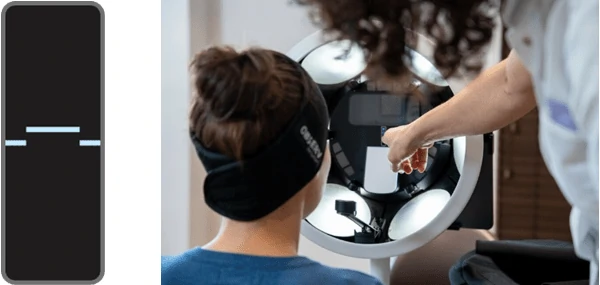
The OBSERV is equipped with a patented Face Positioning System (FPS) that will facilitate the positioning of the client via visual feedback.
Prior to capturing images, the client must be instructed not to move during the capturing process. Beware, the patient may not hear you when positioned in the OBSERV. Speak to the side of the black hood to their ear to deliver instructions. Do ask client to have their eyes shut so the eyelids can be analysed also. There is no danger to the client should they open their eyes but eyelid movement will blur the final result.
The lines in the FPS screen indicate the correct and wrong positioning of the face. The client needs to position the head so that the lines in the screen form one line. When the middle line is too high instruct the client to tilt the head in such a way that the forehead moves forward. When the middle line is too low, advise the client to tilt the head in such a way that the forehead moves backward. This FPS is visible inside the OBSERV by the patient and on the front of the iPad by the operator.
Prior to capturing images, the client must be instructed not to move during the capturing process. Beware, the patient may not hear you when positioned in the OBSERV. Speak to the side of the black hood to their ear to deliver instructions. Do ask client to have their eyes shut so the eyelids can be analysed also. There is no danger to the client should they open their eyes but eyelid movement will blur the final result.
The lines in the FPS screen indicate the correct and wrong positioning of the face. The client needs to position the head so that the lines in the screen form one line. When the middle line is too high instruct the client to tilt the head in such a way that the forehead moves forward. When the middle line is too low, advise the client to tilt the head in such a way that the forehead moves backward. This FPS is visible inside the OBSERV by the patient and on the front of the iPad by the operator.
Five angles
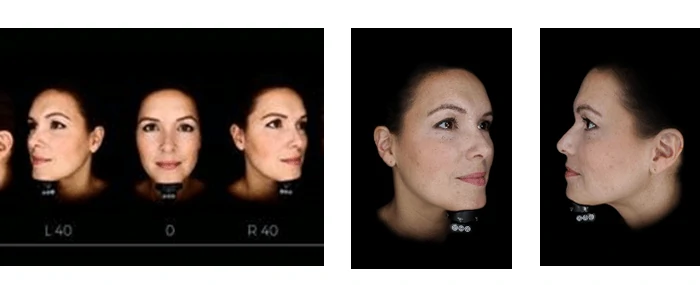
For a '3-D-view' of the client’s skin and appearance the OBSERV allows to make photos of the patients face in 5 positions.
The OBSERV has the FPS for the 0° frontal and for both the 40° views. The 90° view is not supported by the FPS. When selecting the 0° or 40° angles in the capture screen, the corresponding FPS turns on.
The OBSERV has the FPS for the 0° frontal and for both the 40° views. The 90° view is not supported by the FPS. When selecting the 0° or 40° angles in the capture screen, the corresponding FPS turns on.